Social Media MCP: How To Set It Up With WoopSocial.
Posting automatically to Facebook, Instagram, Threads, Pinterest, LinkedIn, TikTok, YouTube and X/Twitter was always manual work. But with the new MCP by WoopSocial, you can set it all up without having to do all the manual work.
This MCP gives your AI agent the ability to schedule posts on various social media platforms. For example, you can ask your agent to schedule content for the next 30 days produced by you. You can also ask the agent to generate the content itself and then schedule it.
Plus, you do not need your own unique API keys or app IDs per social media platform (which takes weeks to get approval for), you can just connect your accounts and get started immediately.
TL;DR - Here is how to set up your WoopSocial MCP to post to social media if you use tools like Claude (Desktop, Coworker or Code) or ChatGPT (or any other AI agent that allows you to use just a link with API).
- Go to your developer settings in Claude or GPT, add a new connector.
- Create your account on WoopSocial.com here
- Give your Connector a Name (i.e. WoopSocial) and enter https://api.woopsocial.com/mcp in the URL field
- Now Connect your Connector through the browser (from within your AI tool)
- Success! You can now start publishing and scheduling posts from within your AI agent.
The social media posting MCP that actually makes your life easier
We are all doing more and more work straight from our AIs. No matter what AI tool you are using, odds are you are researching and creating new things using your favorite tool. And now your tools can do a lot more, thanks to the MCPs.
This MCP makes you a lot more productive when it comes to creating and publishing content. Especially if you run multiple accounts yourself. Whether you want to post videos or images, the time of having to manually upload, select and publish them is over. And having to copy and paste your content between different platforms is also a thing of the past now.
Some popular use cases for this MCP
The WoopSocial MCP turns your Claude, GPT, Cursor, or any other tool into a social media marketer by itself. This means that from here on out, you can just tell your AI tool/agent to do something, and then the MCP will do exactly that.
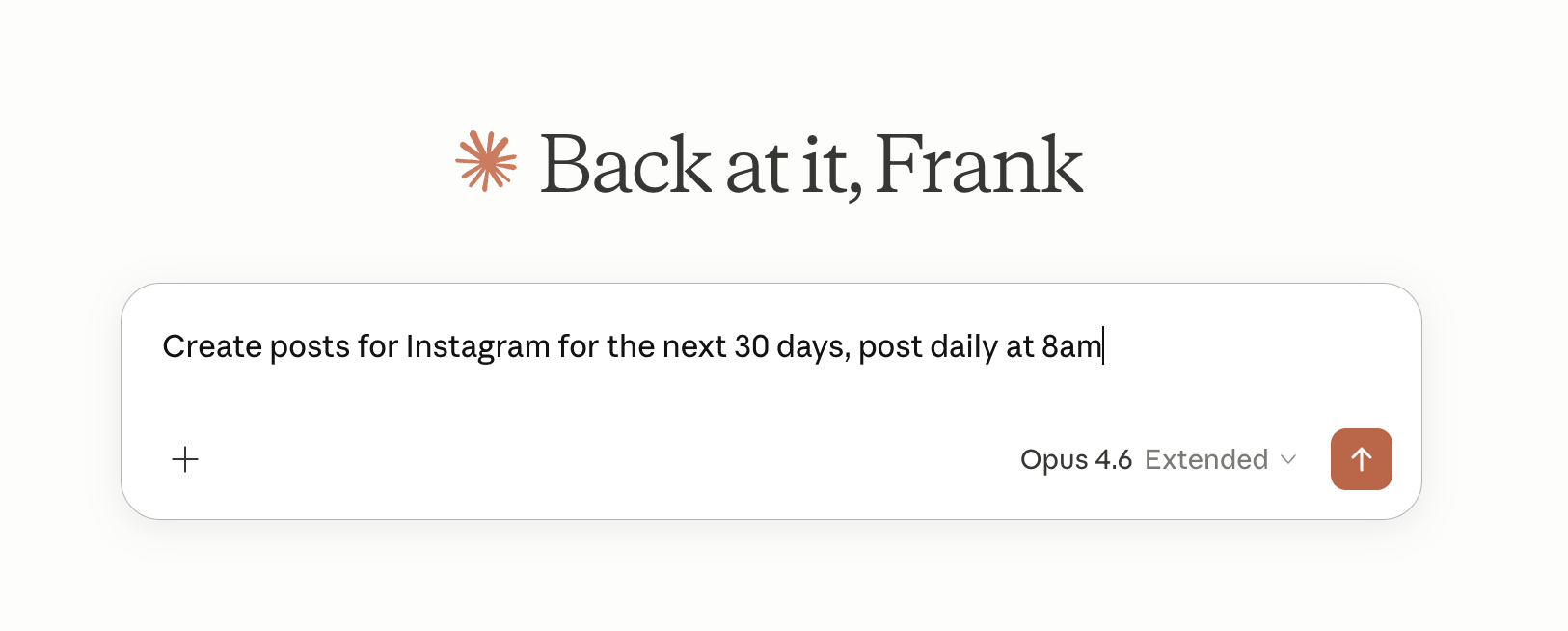
'Create posts for Instagram for the next 30 days, post daily at 8am'
You can seriously now tell your AI tool to do that, and it will. It will first think about what the best posts for your social media accounts will be. It will then draft a 30 day calendar, and probably will ask you to look at it. Once you approve it, it can then create images for you for the next 30 days, or tell you what to create as images. The text will also automatically be generated. And then the publishing and scheduling of the posts will be done completely automatically to your Instagram account.
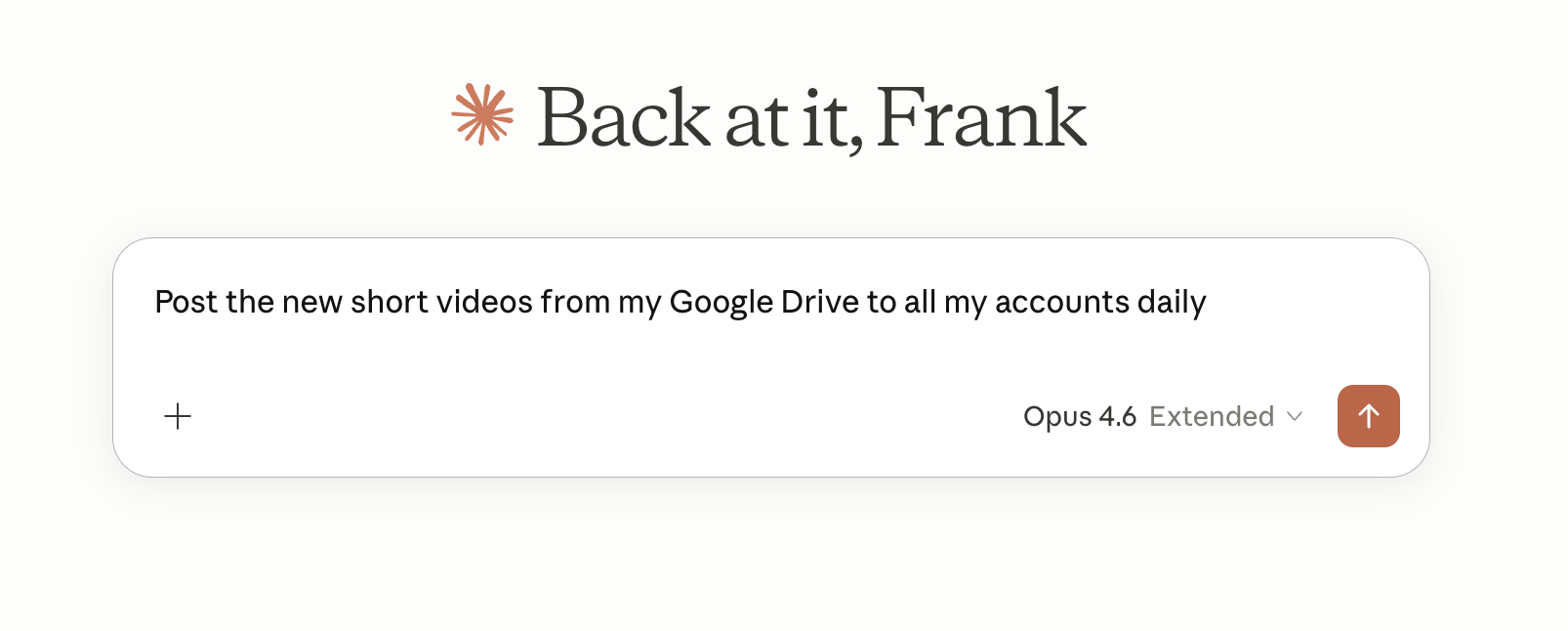
'Post the new short videos from my Google Drive to all my accounts daily'
Whether you use Veo3.1 to create new short videos or just create them yourself, you can automatically get them from any source connected to your agent/AI tool, and have them be turned into actual social media posts on all your platforms. You can combine this with repeated tasks in your agent setup so it will create new posts on your channels daily.
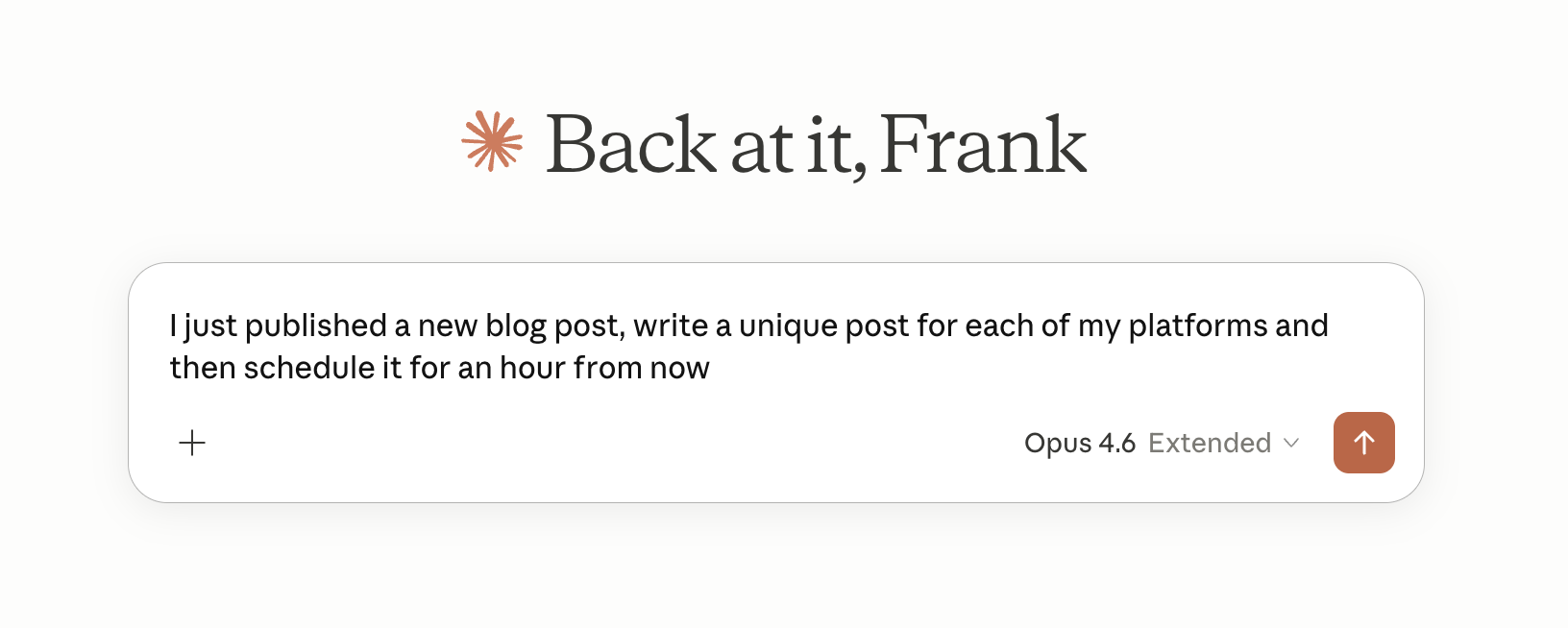
'I just published a new blog post, write a unique post for each of my platforms and then schedule it for an hour from now'
This prompt will make your agent go to your blog, check the latest post, grab its content and then rewrite it into social media posts for each of the platforms connected to your account. So it can automatically update your personal LinkedIn, company LinkedIn, Facebook accounts, X accounts, Pinterest, Instagram, etc. and ensure that each of the posts per account is unique and from your own tone of voice so it fits every platform perfectly.
Manage multiple brands/accounts from a single dashboard
If you are an agency or running social media for multiple companies or accounts, it quickly becomes a drag to do it properly. The main reason is that you need to keep switching between accounts. Using the WoopSocial MCP, you can now just do it all from a single dashboard in your AI agent.
So what can you do with the WoopSocial MCP?
There are several tools that your AI agent can use with the MCP, directly in whatever AI tool you use.
Let's start with a list of all of them:
- completeUploadSession
- createOAuthAuthorization
- createPost
- createUploadSession
- createWebhookEndpoint
- deletePost
- deleteWebhookEndpoint
- getHealth
- getPost
- getSocialAccountPlatformInputs
- listProjects
- listSocialAccountPosts
- listSocialAccounts
- listWebhookEndpoints
- validatePost
createPost
This is the most important one out of all of them, so let's start with this one. This call sends your content to the WoopSocial servers, so you can automatically publish or schedule it to any of your social media accounts on Facebook, Instagram, Threads, Pinterest, LinkedIn, TikTok, YouTube or X/Twitter.
validatePost
Runs automatically right after createPost to return the status and the postID.
createUploadSession
This is what your AI agent will call when you add an image or a video to your post(s). It will automatically push the image or video to the servers of WoopSocial, ensuring that it can be added to the post you are publishing or scheduling.
completeUploadSession
This is what your AI agent will call after the upload has been successful so it can push your content to the createPost call.
listProjects
Run this as the first command in the MCP once you have it connected. This will give you a list of the projects connected to your account, which host the social media accounts. Once the call from the MCP was successful, you will get the IDs of the projects connected to your account. You can then use that ID to get the social media accounts using listSocialAccounts.
listSocialAccounts
This call will allow your MCP to grab all of your social media accounts connected to a specific project ID. You will need to include the project ID and social account ID from WoopSocial to create a new post, your AI agent will run this automatically. Note that this also includes the name of each social media account or page. This allows for natural language to be used, like 'Create a new LinkedIn post about xyz and schedule it for tomorrow morning on my personal LinkedIn account'. This will then schedule it for the morning, on your own account, without having to give the MCP the social account ID.
listSocialAccountPosts
This helps your AI agent to get an overview of the upcoming posts on your calendar and past posts, which is ideal to avoid duplicate posting, plus it can double check whether certain posts were added to the calendar. If you want the social media posts from multiple accounts, just run this call multiple times (one for each account).
createOAuthAuthorization
This is the only MCP call that might require your AI agent to request some manual work from you. For each platform, the MCP/Agent can create a sign in link to connect your account to WoopSocial so you can start publishing through the platform. Note that this is necessary for each platform, as they do not allow direct sign in/connection by an AI agent itself for now. If you have set up your AI agent where it can also browse the web, it can just do this automatically for you.
getPost
This allows you to find a post based on its ID. For example, if you want to understand more about a future post that is scheduled, or a post that you have recently published, then this is the ideal call to make to get information about that specific post.
getHealth
This is a quick call to the WoopSocial servers through the MCP so it can check whether the connection is working. This call is ideal when you are setting up the MCP, as you can quickly check if the servers can be reached to then subsequently make any other calls through the MCP.
getSocialAccountPlatformInputs
This MCP call is very important when you are publishing posts to specific networks. Some networks, such as TikTok, require some specific settings before you can upload your video. Using this call, you can get a list of all the required settings so you can ensure that the AI tool automatically adds these when it is publishing or scheduling new social media posts.
deletePost
Deletes a post from the WoopSocial server. Only those posts can be deleted which have not been published to any social platforms yet.
createWebhookEndpoint
Use this tool to create a webhook. WoopSocial will send events to this webhook when various events happen in the system. For example you can get notified when a post is published to a social platform.
deleteWebhookEndpoint
No longer need the webhook you've created? Simply run this through the MCP and it will delete the webhook with your mentioned ID. You can also immediately after run createWebhookEndpoint again to create a fresh webhook.
listWebhookEndpoints
Displays a list of all your current active webhook endpoints as output through the MCP. This call is especially useful before running deleteWebhookEndpoint to ensure you have the correct ID to delete it, or right after createWebhookEndpoint to verify the new webhook was created.
Let's cover some quick questions
What is a social media MCP?
In short, a social media MCP is a tool that you include in your AI tool like GPT or Claude, or connect with your AI agent, to directly post or schedule posts to social media. Because the tools are excellent at creating social content, posting it from there is a natural next step.
What platforms does the WoopSocial MCP integrate with?
It integrates with every platform that allows MCP integrations, some examples are: Claude Desktop, Claude.ai, Claude Code, ChatGPT, Cursor, Windsurf, VS Code (with GitHub Copilot), Cline, Continue.dev, Zed, Replit, Goose, GitHub Copilot CLI, Cherry Studio, NextChat, Jan, Chainlit, Sourcegraph, Composio, n8n, and by now hundreds and hundreds more too.
What do I need to use this social media MCP?
WoopSocial's MCP simply requires an API key to work, along with the code snippet mentioned at the top of the article. Just paste your API key (get it in your API dashboard) into the code. The total setup time is less than 70 seconds. If you still need an account, just sign up here.
Is this social media MCP free to use?
The MCP is free to use but the API key is $19/month. Note that this gives you access to unlimited posts on all social media platforms with 20 accounts (no posting limits, seriously. The only limit is X/Twitter, where 200 posts per month are included). Most other tools limit your number of posts, WoopSocial's MCP keeps it clean and great for your wallet by providing unlimited posts and lots of accounts for cheaper prices than any other tool.
Which social media platforms does the MCP support?
WoopSocial's MCP provides direct posting and scheduling of images and videos to all the major social media networks that people actually use: Facebook, Instagram, Threads, BlueSky, LinkedIn, X, Pinterest, TikTok and YouTube.
Does this social MCP work with AI agents too?
It sure does. If you use agents like OpenClaw or Paperclip, you can definitely use this MCP there too. Here is a list of some other agents you can use this social media MCP with: OpenAI Agents SDK, Claude Agent SDK, Google ADK, CrewAI, LangGraph, Mastra, PydanticAI, AutoGen/AG2, Smolagents, Microsoft Semantic Kernel, NanoClaw and Hermes Agent.
Related reads
9/1/2026
Best Social Media API for n8n in 2026: Verified Nodes, HTTP Wiring, and the One-Node Path to Every Platform
Wiring social posting into n8n? Compare verified community nodes vs. raw HTTP Request wiring, and the one node that posts to 9 platforms from your canvas.
9/1/2026
Meta App Review Rejected? The Complete 2026 Fix-It Guide (and How to Skip Review Entirely)
Meta app review rejected? Here are the exact rejection reasons, how to fix each one, and how to publish to Facebook & Instagram without app review at all.
6/14/2026
YouTube API Alternatives in 2026: start developing right away
Skip the YouTube quota system caps and API calls. Compare the best YouTube API alternatives with code examples, pricing and understand recent changes.