Social Media MCP: Automate Social Content In Claude and GPT
Running your accounts on Facebook, Pinterest, TikTok, X/Twitter, YouTube, LinkedIn, Threads, BlueSky and Instagram is now easier than ever. Using the social media MCP, you can post directly from your Claude apps (Desktop, Coworker and Code), along with ChatGPT as well.
On this page, we will quickly explain how to set up the social media MCP in your favorite web apps, so you can quickly add it and start publishing right from within your favorite AI app, agent or web chat.
You do not need an MCP link when integrating with Claude. Click here to skip the first step and see how you can set it up in Claude.
First get your MCP link
Every MCP works with an MCP link, which is just a link that includes the URL to call along with your unique API key. We've made it extremely easy for you to set this up.
You start by going to the WoopSocial Dashboard and clicking the API tab.
Once there, click "Create API Key".
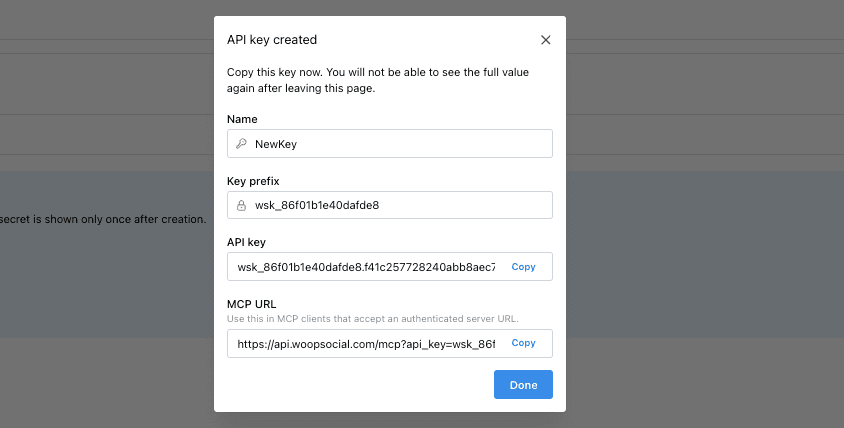
Give it a name, such as 'MCPKey'
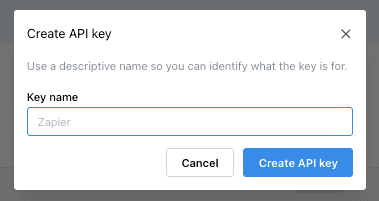
You will now get an overview of your new key. If you look at the bottom, you can copy the exact link that you need to set up your MCP in your favorite AI agent app.
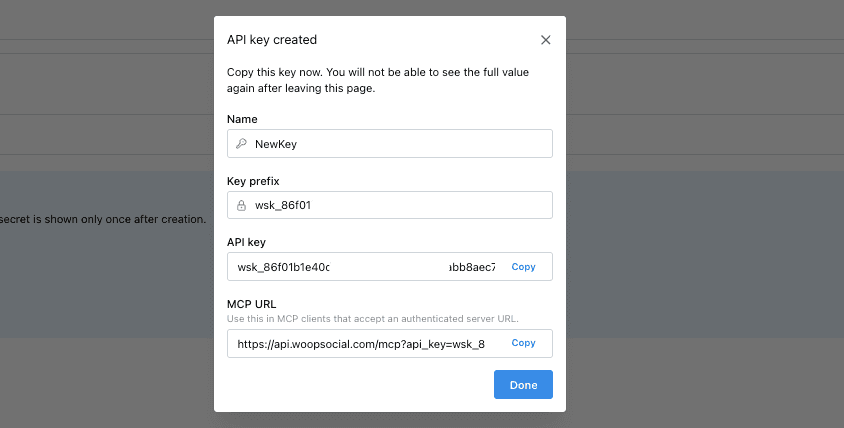
Here are three ways to set up in the MCP in your favorite apps:
How to set up the social media MCP in Claude
If you're a Claude user like us, you're going to love how easy it is to set up the WoopSocial social media MCP.
1-click install
Add the WoopSocial connector to Claude
Open Claude's directory and connect WoopSocial in one click — no manual URL entry.
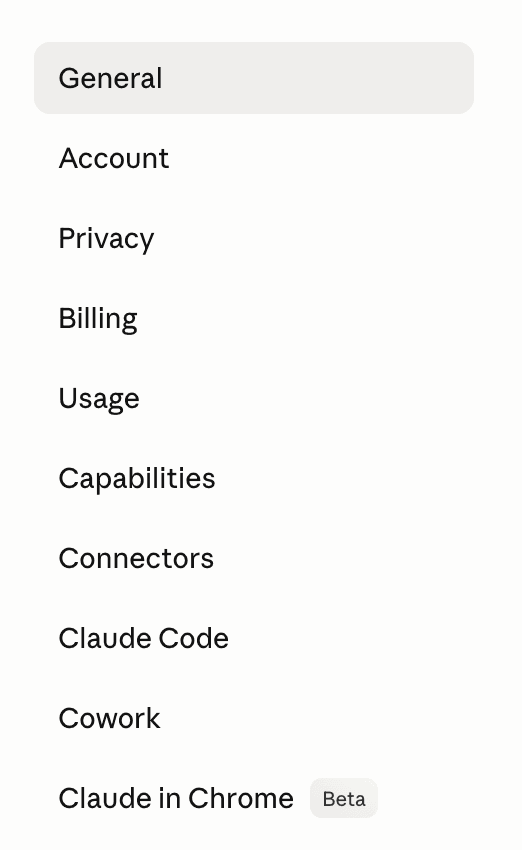
First click on your name in Claude, which opens a dropdown menu. Then click 'Settings'.
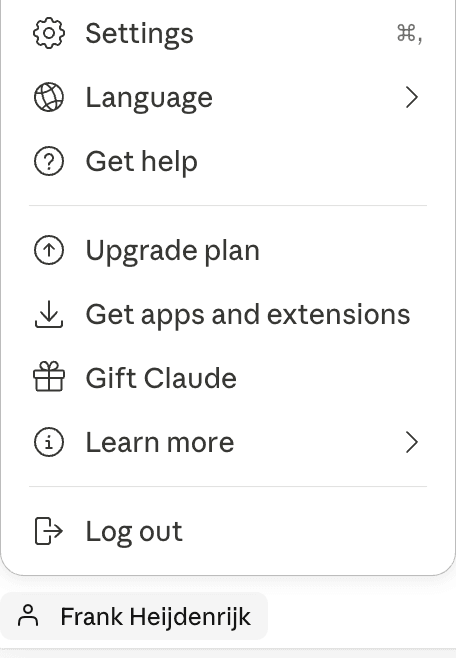
Once you're in Settings, click the 'Connectors' tab.
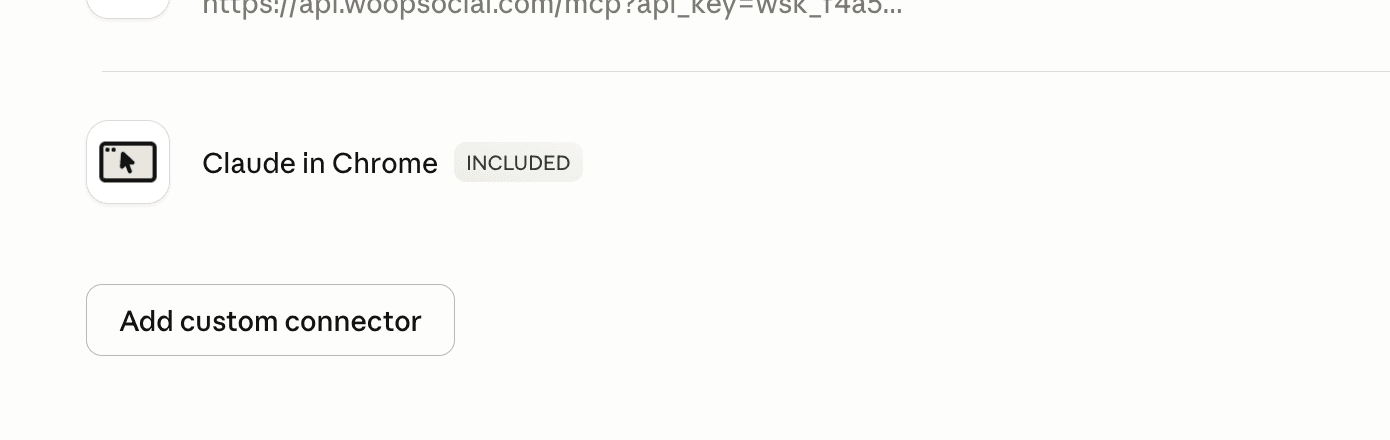
Scroll down on that tab until you see the 'Add custom connector' button.
A new pop-up will open. In that pop-up, enter the name of the connection (i.e. 'WoopSocial') and enter the url [https://api.woopsocial.com/mcp] in the URL field.
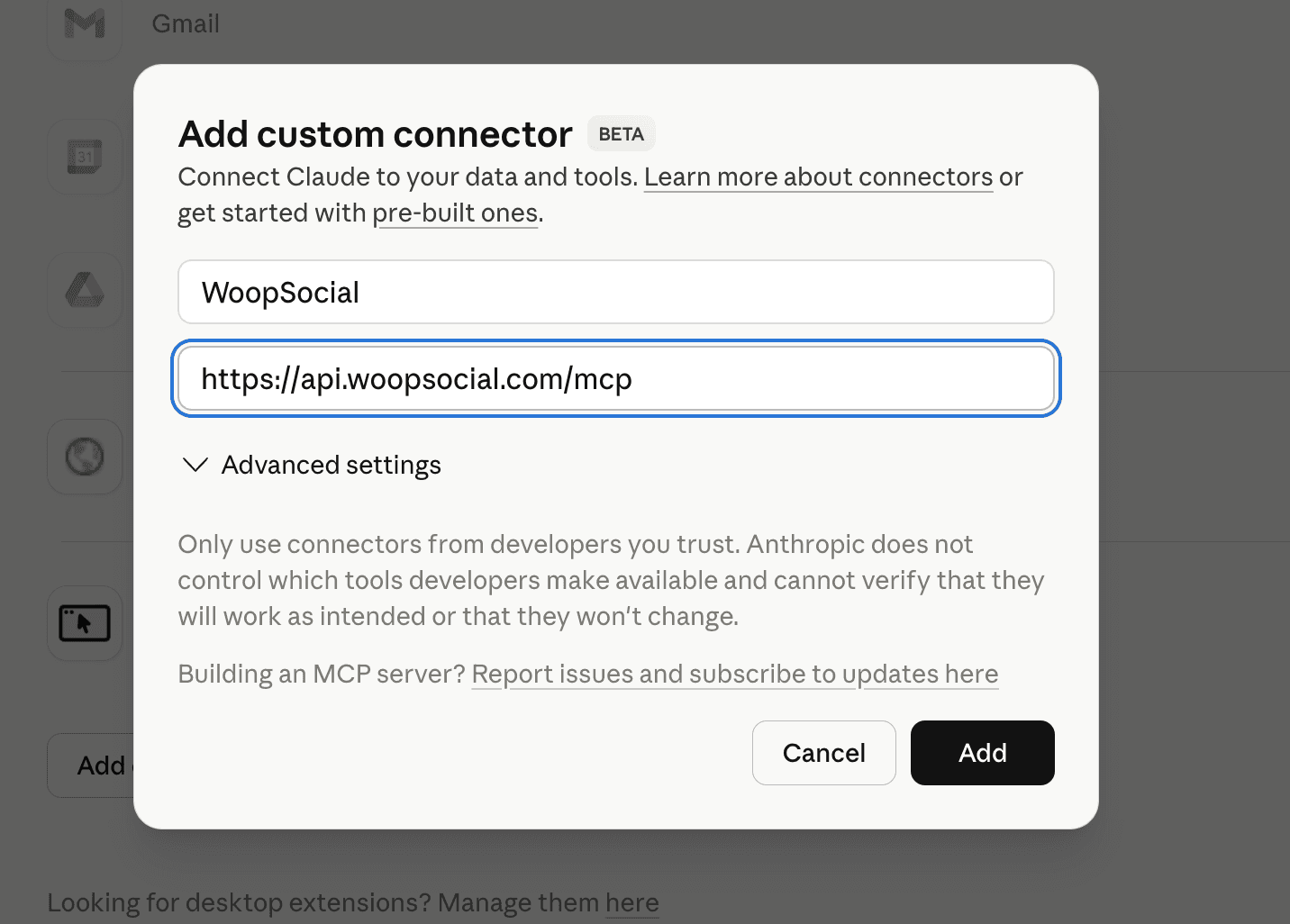
Once you've done that, you just click 'Add'.
You will be sent to your Connectors page. Now click 'Connect' on the WoopSocial connector.

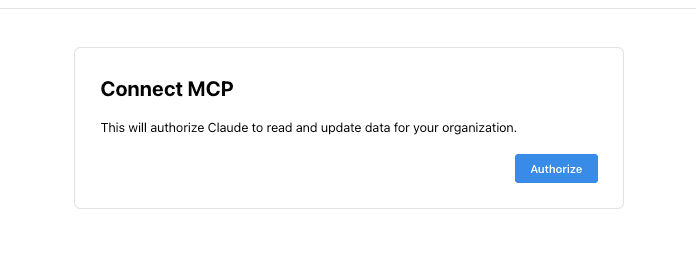
A pop-up will open in your browser. Just click 'Authorize' and you'll be sent back to Claude.
Here's a quick test for you
Start a new chat in Claude and type the following prompt:
List all of my social media accounts for me
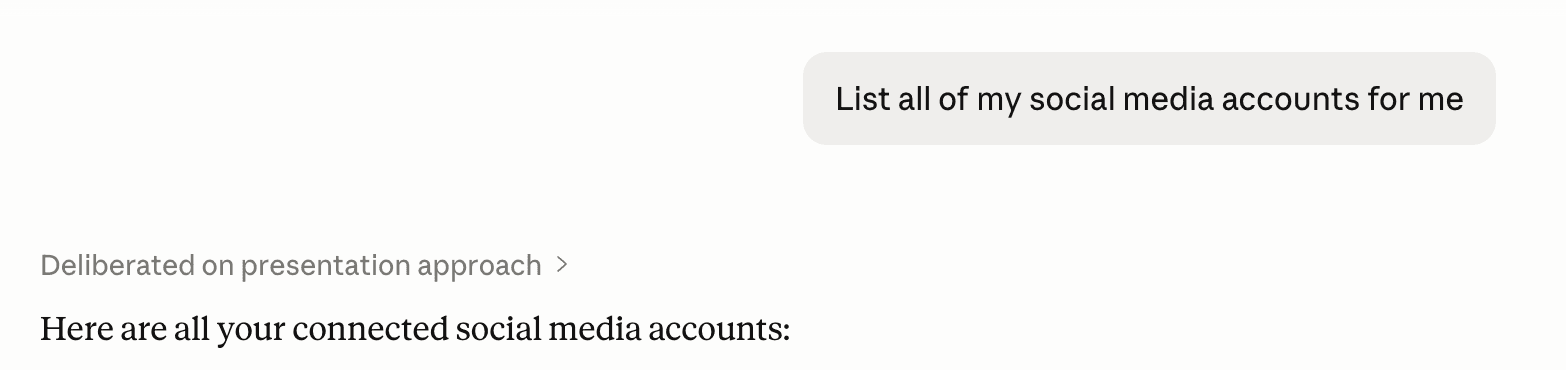
Claude will now call the API through the MCP and list all of the social media accounts you've connected to WoopSocial.
Sometimes when posting, it might block the WoopSocial server when adding media such as images or videos. In that case, make sure that '*.cloudflarestorage.com' (make sure you include that asterisk/star) is added to your approved domains. To do so, go to Settings > Capabilities > Scroll Down > Domain Allowlist > enter '*.cloudflarestorage.com'.
Just create content with Claude, create your images, and publish them. Or schedule them to go out later. Then check how your content performs through the analytics endpoints in the WoopSocial MCP.
How to set up the social media MCP in ChatGPT
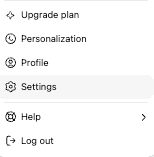
Start by going to Settings in the left bottom corner.
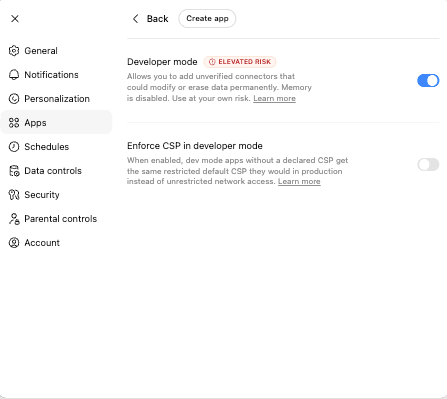
Once you're in Settings, click 'Apps'. If you haven't yet, make sure you allow Developer Mode, this is necessary to include MCP Apps in your ChatGPT.
Then click 'Create App' at the top and enter the following information and replace the MCP url:
- Name: WoopSocial
- Description: Publish social media content
- MCP Server URL: The MCP URL you copied earlier
- Authentication: Select 'No Auth' in the dropdown selector
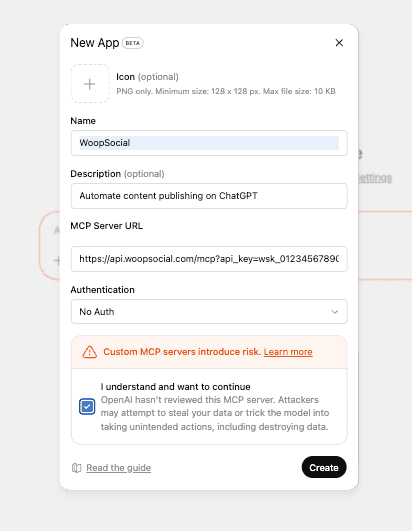
Then click "Create" and start a new chat. Use the following prompt to test the MCP:
List all of my social media accounts for me
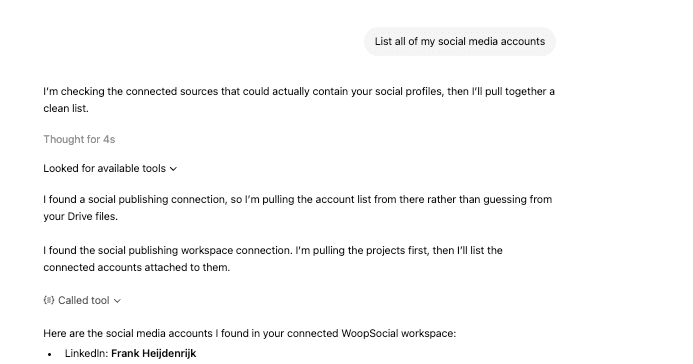
Once it replies, you know the MCP is set up properly and you can post content to your social media accounts.
Connect the WoopSocial MCP with any other AI Agent/App
Prefer a per-client walkthrough? See Connect any AI agent for Claude, ChatGPT, Cursor, Codex, Hermes, Grok, Muse and more.
You can also connect this social media MCP to any AI Agent/App. Here's a simple script to add to your config files (if you don't know how to add it, just ask your AI Agent/App). Replace the example API key with your own MCP URL from API Access.
{
  "mcpServers": {
    "woopsocial": {
      "url": "https://api.woopsocial.com/mcp?api_key=wsk_0123456789abc"
    }
  }
}
You might need to add the media server (where your images and videos are stored) to your allowed domains. To do so, simply add '*.cloudflarestorage.com' (including the asterisk/star) to your Allowed Domains in your AI Agent/App.