API & MCP included on every plan
Schedule Your Pinterest Carousel Posts
Plan Pinterest carousel Pins inside WoopSocial. Upload up to five vertical frames, add descriptions with keywords, and schedule automatic publishing to your boards.
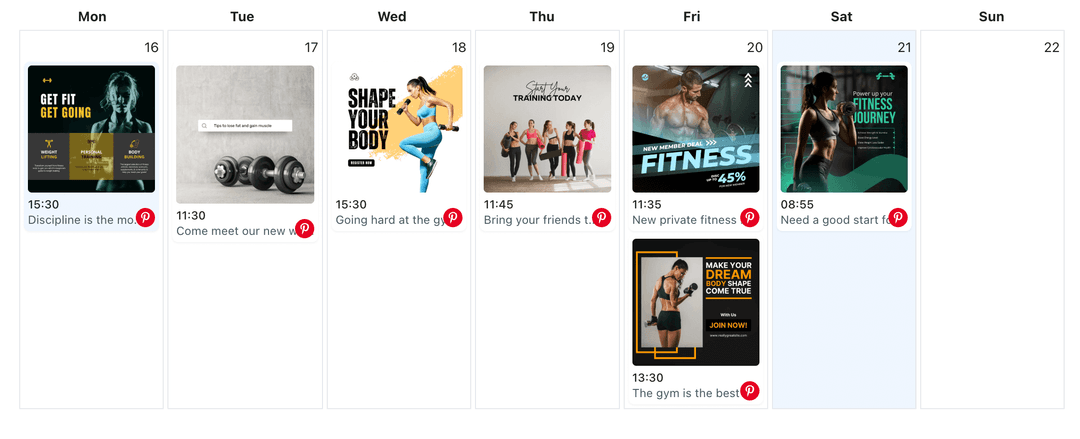
Crafters, retailers, and content studios rely on WoopSocial to keep Pinterest carousels consistent
Post to Pinterest through one unified social media API for your apps, AI agents, and automation tools. Use the WoopSocial REST API or MCP server to automate posting — we handle OAuth, tokens, and platform changes so you can ship features.
One API for posting
Publish to Pinterest through a single unified social media API — no separate integrations per platform
Carousel Pin Scheduling
Upload up to five vertical images or short clips, arrange them in sequence, and attach titles and descriptions for every Pinterest board you target. For single-frame Pins you can also schedule Pinterest image posts. schedule Pinterest image posts
- Up to five frames
- Board selection
- Automatic publishing
Keyword-Friendly Copy
Write titles and descriptions with saved keyword notes so every frame is optimized for Pinterest search without repeating the same sentence.
- Saved keyword banks
- Character count helper
- Alt text reminders
Campaign Calendar View
See carousel Pins alongside seasonal guides, video Pins, and evergreen content so you can fill gaps before holidays hit. Need deeper planning? Open the Pinterest content planner to map the rest of the month. Pinterest content planner
- Board-based filters
- Seasonal tagging
- Week and month views
How It Works
Get your free API key
Sign up in under 70 seconds, connect your Pinterest account, and start calling the unified API or MCP server.
Build your integration
Send posts from your app, workflow, or AI agent with one endpoint — no separate platform SDKs to maintain.
Publish automatically
Schedule or publish Pinterest content instantly. WoopSocial handles OAuth, tokens, and platform API changes.
Vertical Ratio Tips
Stay within Pinterest’s recommended 2:3 aspect ratio so every frame fills the feed without being cropped.
Frame-Level Notes
Add overlay text reminders or shot lists to each frame so designers know exactly what to update before it goes live.
Link Tracking Support
Keep UTM-tagged URLs organized in the same composer so every carousel frame sends clicks to the right landing page.
Video + Carousel Pairing
Plan carousels next to Pinterest video Pins on the same calendar, and when you need motion-first content you can schedule Pinterest video posts from the very same workspace. schedule Pinterest video posts
Why Pinterest Carousels Need Structure
Pinners swipe through carousels looking for steps they can save. Building them in advance gives you time to add overlays, pick helpful angles, and ensure each frame feels actionable.
Scheduling also lets you align carousels with seasonal spikes- think holidays, back-to-school, or new product launches- so the right ideas appear when searches surge.
Because WoopSocial shows carousels next to every other Pin, you can stagger educational tips between promotional posts and keep boards balanced.
Designing Carousels That Drive Saves
Start with a cover frame that states the project or benefit clearly. Each following frame should add a single tip, ingredient, or direction so pinners can replicate the idea.
Use consistent color palettes and typography across frames to reinforce your brand and make the carousel feel cohesive in the feed.
Close with a frame that calls out the next action- visit a tutorial, shop the collection, or download a guide- so users know what to do after saving.
Ready to build your Pinterest integration?
Upload assets once, keep descriptions organized, and publish high-performing carousel Pins automatically.
Get your free API keyFrequently Asked Questions
Pinterest supports up to five frames per carousel Pin, and WoopSocial follows that limit when you upload your assets.
Pinterest uses one destination URL per carousel Pin. Use the description to explain what users will find when they tap through.
Yes. Add keywords, hashtags, and notes in the composer so every frame is optimized before it publishes.
You can replace images, rewrite descriptions, or change publish times anytime before WoopSocial sends the carousel live.
Once scheduled, WoopSocial posts to Pinterest automatically even if you are offline or logged out.
Free includes up to 2 connected social accounts. Upgrade to Pro for more accounts and credits.
Keep Pinterest Carousels Evergreen
Batch your swipeable Pins, fill seasonal calendars, and trust WoopSocial to publish right on time.
Get your free API key